
I have a confession that any founder or freelancer will recognize. Last month I had a $48 Uber from Brooklyn to JFK to meet a consulting client, and when I went to expense it back to them, the standard email receipt was missing the one thing the client's finance team wanted: the trip purpose. They bounced the expense. I had to dig through the Uber app, take a screenshot of the trip detail, add a typed note about the meeting, and resubmit. The whole thing took twenty minutes for a $48 line item.
That's the problem this guide solves. I've been running RideWise full-time while juggling four consulting clients, two corporate cards (Brex and a legacy Amex), and an Expensify account I refuse to abandon because the SmartScan still works better than anything Concur ever shipped. I take 40 to 60 rideshare trips a month and almost every one ends up on someone else's books. Here's what I've learned about getting Uber and Lyft receipts right the first time.
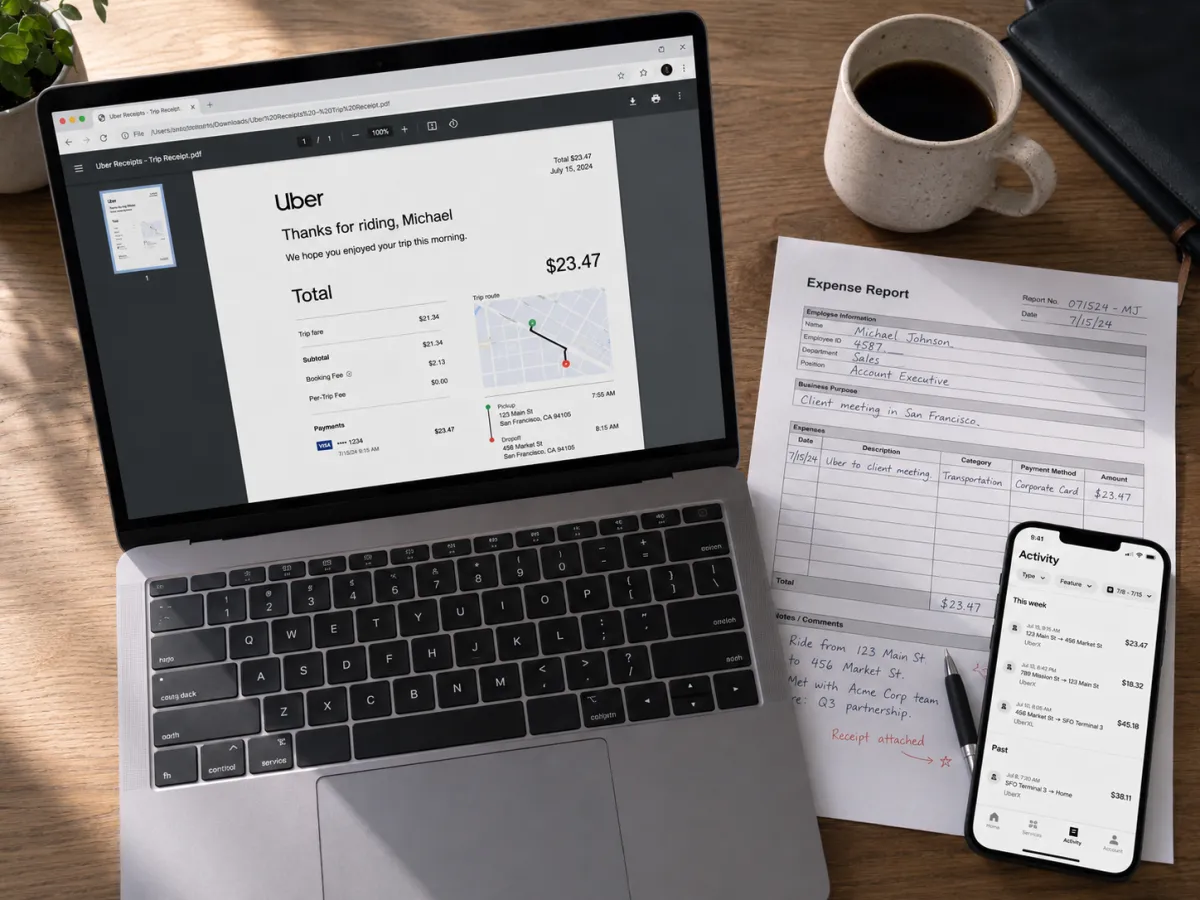
How the default email receipts work
Both platforms send an automated email receipt to the address on your account within roughly 24 hours of the trip ending. Uber tends to deliver inside an hour; Lyft sometimes batches and sends overnight. The trigger is the trip being "finalized" — which includes any tip you add after the fact and any fare adjustments from the driver or support team.
What actually arrives in your inbox is more useful than people think, but it isn't identical between the two services. Here's the side-by-side I wish someone had handed me three years ago.
| Field | Uber receipt | Lyft receipt |
|---|---|---|
| Trip date and time | Yes (pickup + dropoff timestamps) | Yes (pickup + dropoff timestamps) |
| Pickup and dropoff addresses | Yes (full street addresses) | Yes (full street addresses) |
| Static route map | Yes (embedded PNG) | Yes (embedded PNG) |
| Service type (UberX, Comfort, etc.) | Yes | Yes (Standard, XL, Lux, etc.) |
| Driver first name | Yes | Yes |
| Vehicle make/model + license plate | Make/model only | Make/model only |
| Fare breakdown (base, time, distance) | Yes, itemized | Yes, itemized |
| Surge multiplier disclosure | Shown as "Booking Fee adjustment" line | Shown as "Prime Time" line item |
| Tip line | Yes (updates if added later) | Yes (updates if added later) |
| Payment method (last 4 digits) | Yes | Yes |
| Tax breakdown | Yes (CA, NY, IL, etc. show local tax) | Yes |
| Trip purpose / expense category | Only with Uber for Business profile | Only with Lyft Business profile |
| Custom memo field | Only with Uber for Business | Only with Lyft Business |
| Invoice number / unique trip ID | Yes (UUID at bottom) | Yes (UUID at bottom) |
| PDF download link | Yes (within the email) | Yes (linked to lyft.com) |
The two differences that matter most for expense submission are the trip purpose field (which only exists if you're on a business profile) and how surge gets labeled. Concur and SAP-based corporate systems sometimes flag the "Booking Fee adjustment" line on Uber receipts as a fee rather than fare and bounce it for re-categorization. I've had to manually re-code that line in Concur more times than I can count.
Pulling a receipt right now — Uber
This is the path I take fifteen times a week. Open the Uber rider app and tap Account in the bottom-right corner. Tap Activity. You'll see your trip history, most recent first. Tap any trip — the page that opens has the full receipt at the bottom. Scroll down past the map and the rating, and you'll see "Receipt" with line items, then a button labeled "Resend Receipt."
Tap Resend and Uber emails the receipt to the address on file. If you need it sent to a different email — say, a client's accounting team — you have to do that manually after it arrives in your inbox. Uber doesn't let you change the destination address from the app.
When you forward an Uber receipt for reimbursement, paste the trip URL at the top. You get it by tapping the share icon on the trip detail page in the app. The URL opens a verifiable view of the trip on Uber's servers, which I've used to win two disputed reimbursements where the finance team thought I was double-billing.
For older trips that are no longer in the recent-activity view, go to riders.uber.com in any browser. Sign in, click "My trips," and use the date filter. The web portal shows every trip back to account creation — mine goes to 2014 — and lets you download individual PDFs or export a CSV.
Pulling a receipt right now — Lyft
Lyft buries the receipt one level deeper. Tap the menu icon (the user silhouette top-left), select Ride history, then tap the trip you want. On the trip detail screen, scroll to the bottom and tap Get help. In the help menu, choose Email me the receipt.
It's a clunkier flow than Uber's, but the result is the same: a PDF receipt lands in your inbox within a few minutes. If you want the full history view, lyft.com/i in a browser shows every ride and lets you re-request any receipt as PDF.
| Scenario | How to get the receipt | Time it takes |
|---|---|---|
| Trip just finished (Uber) | Wait for email — arrives within an hour | ~30 minutes typical |
| Trip just finished (Lyft) | Wait for email — sometimes batched overnight | Up to 24 hours |
| Need it immediately after trip | App → trip → Resend / Email receipt | 1–3 minutes |
| Trip 30+ days old, never received email | App Activity → trip → Resend Receipt | 2 minutes |
| Trip 6+ months old | riders.uber.com / lyft.com/i web portal | 5 minutes |
| Need full year for taxes | Web portal → Export CSV / annual history | 10–15 minutes |
| International trip (paid in EUR/GBP) | Same flow — receipt shows local currency + USD card charge | Same as above |
| Split-fare trip with friends | Each person receives their own receipt for their share | Auto on completion |
| Tip added after trip ended | Updated receipt auto-resends within 24h | Same day |
| Lost access to email on the account | Update email in Settings, then resend (Uber blocks resend for 24h after email change as anti-fraud) | 24+ hours |
The 90-day myth
People keep telling me Uber only keeps 90 days of receipts. That's not true. The mobile app caches roughly 90 days for performance, but the data itself sticks around forever on your account. I just pulled a receipt from a 2018 trip in San Francisco to test this for the guide — took two clicks on riders.uber.com.
Lyft is the same. The app shows recent trips for quick access, but lyft.com/i shows the full history. The only situation where you genuinely lose access is if you delete your account, at which point both companies confirm the data is permanently purged within thirty days under their privacy policies.
For tax season, both platforms support an annual CSV export. On Uber, go to riders.uber.com → "My trips" → click the download icon and select a date range. On Lyft, go to lyft.com/i → "Ride history" → "Export ride history" and pick the year. Both exports include trip date, route, fare breakdown, tip, and a unique trip ID. I send this CSV to my CPA every January for the prior year's business mileage backup.
What Uber for Business actually adds
If you do any meaningful volume of business rides, the consumer Uber app is the wrong tool. Uber for Business is free for personal use, takes about three minutes to set up, and unlocks the features that make expense submission painless.
To enable it: open the Uber app, tap Account → Settings → Business profile → Create. You add a work email, set a payment method, and the next time you book, the app asks "Is this trip personal or business?" You tag it, and the receipt is automatically annotated with that designation. You can also add a custom expense code per trip (I use one per client) and a memo field for the meeting purpose.
The receipt that arrives is the same PDF as before, but now it has a "Trip details" block with your code and memo. That block is what Expensify reads as the expense purpose during SmartScan, and what Concur uses to auto-categorize the line item.
Lyft's equivalent is the Business profile inside the regular rider app: Menu → Settings → Business → Add business info. Same idea, similar fields, slightly less polish on the receipt output. Lyft's PDF puts the business code in the footer, where some expense scanners miss it.
Two things called "Uber for Business" exist and the naming is confusing. The free version is what individual riders use to tag personal trips for expense reports. The paid corporate product is what your employer's travel manager uses to centrally pay for rides, set policies, and view team dashboards. If your company offers it and you tap their invitation email, your rider account links to the corporate account and your eligible rides bill to the company card automatically. You still see the trip in your personal Activity, but the charge never hits your card.
Split fares and what they do to receipts
Both apps let you split a fare with other riders. The receipt mechanics are not obvious. On Uber, when you initiate a split, every rider on the trip gets their own receipt for their share — Uber divides the total by the number of riders and bills each card separately. Each receipt shows the full trip route but only the rider's portion of the cost.
Lyft works the same way functionally, but the receipt language is different. The Lyft receipt for a split fare says "Your share" and shows the split total alongside your portion. I find Lyft's version clearer for expense reports because the finance reviewer can see the full trip cost and the split logic on one page.
One trap: if you initiate the split and a co-rider's payment fails (declined card, etc.), Uber rebills you for their share. I've had this happen and only noticed when my credit card statement was $14 higher than the receipt. The corrected receipt does eventually arrive, but it takes 48 to 72 hours.
Tax treatment: business, medical, charity
This is the part most guides skip, but it matters more than the mechanics of pulling a PDF. The IRS treats rideshare differently depending on why you took the ride. For medical-trip rides specifically, the payments guide covers exactly how to set up an HSA/FSA card so the right rides bill to the right account.
| Category | Deductible? | IRS source | What to keep |
|---|---|---|---|
| Business travel (away from tax home) | Yes — 100% of fare | Pub 463 | Receipt + business purpose + who/where |
| Local business meeting (not commute) | Yes — 100% of fare | Pub 463 | Receipt + meeting details |
| Commute from home to regular workplace | No | Pub 463 | N/A |
| Travel to/from medical care | Yes — if itemizing on Schedule A | Pub 502 | Receipt + provider name + date of service |
| Volunteer work for qualified charity | Yes — actual cost only | Pub 526 | Receipt + organization name + activity |
| Job search in current occupation | No (suspended through 2025 by TCJA) | TCJA 2017 | N/A |
| Moving for new job | No (suspended, military only) | TCJA 2017 | N/A |
The big one people get wrong is commuting. If you Uber from your apartment to the same office every day, that's a non-deductible commute even if you're a 1099 contractor. The deductible rides start when you travel from your office (or home office) to a client site, airport, or meeting.
One IRS rule worth knowing: Publication 463 requires documentary evidence (a receipt) for any business expense of $75 or more. Under $75 you technically only need a written record. But in practice, every expense system I've ever used requires a receipt for every line item regardless of amount. Just keep them all. The Uber and Lyft web portals make it trivial.
I personally tag every business ride in the moment using the Uber for Business profile, even short $9 trips. The thirty seconds it takes pays off three months later when I'm pulling together a quarterly expense reconciliation and don't have to remember whether the 8:47 AM Wednesday ride was to a client meeting or to brunch.
Why corporate expense systems reject rideshare receipts
I've had Uber and Lyft receipts bounced from Concur, Expensify, SAP, Workday, and a custom-built system at one consulting client. The reasons cluster into four buckets.
Missing business purpose. The receipt doesn't say why you took the trip. Fix this by always using a business profile (Uber for Business or Lyft Business) so the memo is on the PDF, or by adding the purpose in the expense tool when you submit.
Mixed personal and business charges. If you forgot to switch profiles and the trip billed to your personal card, finance will reject it as "no proof of business payment." The fix is to switch profiles before each ride. Some systems accept a reimbursement claim with personal-card proof, but most don't.
Surge coded as a non-fare fee. Concur's default rideshare integration sometimes routes the "Booking Fee adjustment" line to a fees category that triggers policy review. Override the category to Travel: Ground Transportation manually before submitting.
Tip exceeds policy maximum. Most corporate travel policies cap rideshare tip at 20%. If you tipped 25% or 30% (justified or not), the system flags the entire receipt. I now keep tips at 20% on business rides and tip extra in cash when I want to, even though the cash tip is not reimbursable.
None of these are Uber's or Lyft's fault — they're policy edges that the expense system enforces. But knowing the patterns saves time when you're batching expenses on a Sunday night before Monday's submission deadline.
Expense apps and what auto-import actually does
Every expense app claims to support Uber and Lyft. The real question is how much manual fiddling is left after the "auto" part finishes.
| Tool | How it imports | What works well | What still needs you |
|---|---|---|---|
| Expensify | SmartScan from forwarded email, or direct Uber for Business connection | Merchant, date, amount auto-extracted; category pre-fills as Ground Transportation | Project/client assignment; trip purpose if not on business profile |
| SAP Concur | Direct Uber for Business integration; manual upload for Lyft | Trips auto-import for Uber if Concur is enrolled at your employer | Project codes, attendee names, and re-categorizing surge lines |
| Brex | Card transaction matching + email receipt forward | Card charge matches receipt automatically; built-in compliance check | Memo field if you didn't add one in the rider app |
| Ramp | Card transaction matching + email forward | Auto-categorizes as Travel; flags personal-account trips for review | Adding trip purpose at the line-item level |
| QuickBooks Online | Bank feed match + Receipt Capture (manual photo or email forward) | Pulls trip into the right Schedule C category for sole proprietors | Class/customer tagging if you bill multiple clients |
| Xero | Hubdoc receipt fetcher (manual upload or email forward) | Extracts line items from the PDF; reconciles against bank feed | Tracking categories must be set manually per trip |
| Zoho Expense | Email forward + Autoscan | Quick scan; good multi-currency support | Reporting tags; mileage calculation if needed |
| Wave | Receipt forward to a unique address | Free; works for solo founders and side hustles | Almost all categorization is manual |
My personal setup, in case it helps: Uber for Business profile tagged with one of four client codes; receipts auto-forward to my Expensify inbox via Gmail filter; Expensify SmartScan creates the expense and reads the client code into a custom field. End-to-end, a $48 JFK ride takes me about ten seconds of attention from booking to submitted expense. It used to take five minutes.
Gmail filter that saved me hours: set a filter for from:noreply@uber.com OR from:no-reply@lyft.com with the action "Forward to: your-expensify-inbox" and "Apply label: Receipts." Now every receipt funnels into your expense tool automatically, and you have a searchable label in Gmail for backup. I've used this filter for three years without it breaking once.
PDF, HTML, CSV — picking the right format
For one-off expense submissions, the email itself (HTML) or the linked PDF is what you want — that's what finance systems are designed to ingest. For tax season or a multi-month audit, the CSV from the web portal is the right tool because you can pivot it in a spreadsheet.
The Uber CSV columns are: trip ID, request time, drop-off time, request city, fare in local currency, fare in account currency, distance, duration, and product type. The Lyft CSV columns are similar but use slightly different headers (ride ID, start time, end time, etc.) and include a Prime Time multiplier column that Uber's omits. Both are easy to import into Excel, Google Sheets, or whatever your CPA uses.
If you're paid by a foreign entity or travel internationally, the CSV is also where you confirm exchange rates. The Uber receipt shows the local currency and the USD card charge separately, and the CSV preserves both columns. I had a London trip in 2024 where the GBP receipt showed £42 and my Brex statement showed $54.18 — the CSV confirmed Uber's quoted exchange rate matched what Brex actually charged.
International receipts and VAT
European Uber and Lyft receipts include VAT line items because EU law requires it. UK riders see 20% VAT broken out. German riders see 19%. French and Italian receipts include both the VAT rate and the merchant's VAT number, which is what a German finance team needs for input tax reclaim.
If you bill a European client and they need a VAT-compliant invoice rather than a rider receipt, neither Uber nor Lyft generates that for consumer accounts. You have to use the corporate Uber for Business product, which can generate invoices with your company's billing address as the recipient. I learned this the hard way after a Berlin client kicked back a stack of consumer receipts asking for "proper invoices."
What I actually do, trip by trip
The system I run isn't complicated, but it took me about a year to settle on it.
Before booking I check both Uber and Lyft prices using the comparison flow built into RideWise — it's the same flow we use for our fare calculator guide. Whichever is cheaper gets the trip, unless one is significantly faster (which matters on airport runs). When booking I open the right app and confirm the profile is set to the correct business code. I have four — RideWise (my own company), three consulting client codes — and I switch via the profile toggle. Takes two seconds.
During the trip, nothing. The whole point of the system is that I don't have to think about expenses during a $48 car ride. After the trip I tip in-app (always 20% for business, more for personal) and close the app. The receipt auto-emails, my Gmail filter routes it to Expensify, SmartScan parses it, and the expense lands in a draft report with the right client tag.
Sunday night batch: I open Expensify, glance at the auto-generated draft, type in any missing memos for trips where I forgot to add one in the rider app, and submit. Average time: about ten minutes for fifteen rides.
Tax season: I download annual CSVs from riders.uber.com and lyft.com, hand them to my CPA, and answer her questions over a half-hour call. The CSV gives her the documentary evidence she needs to back the deductions on Schedule C.
If you do nothing else, do three things. Enable a Business profile in both apps — free, three minutes per app, and your receipts now carry trip purpose. Set the Gmail filter to forward Uber/Lyft receipts to your expense tool's inbox. Bookmark riders.uber.com and lyft.com/i for the inevitable "where is that receipt from three months ago" moment.
Disputes and corrections
Sometimes the receipt is wrong. The driver took a longer route than the navigation suggested, or you were charged a cleaning fee you don't recognize, or the surge multiplier looks higher than what you confirmed before booking. Both platforms have a path for this and the receipt itself is your evidence.
On Uber, open the trip in Activity, scroll to the bottom, and tap "Get help." The relevant flows are "Review my fare or fees" and "Dispute my cancellation fee." Uber responds within 24 to 48 hours and will refund the disputed amount if your case is solid. The refund triggers an updated receipt that supersedes the original — important if you've already submitted the expense, because the original receipt is no longer accurate.
On Lyft, the path is the same Get Help menu inside Ride History, then "Request a price review." Lyft's response time is similar.
If you need to reach a human, both companies have phone support — I covered the exact numbers and hold times in our Uber customer service contact guide. For fare disputes specifically, the in-app flow is faster than calling.
One thing to know: if you cancel a ride and get charged a cancellation fee, you do get a receipt for that fee. It looks like a regular trip receipt but with a $5–$10 fare and no distance. Expense systems sometimes flag these because there's no trip route on the receipt. Add a note like "Cancellation fee for client meeting that ran over" and they generally pass.
Service tier and corporate policy
Corporate travel policies often restrict which Uber or Lyft service types are reimbursable. UberX, Comfort, and Lyft Standard are almost always covered. UberXL and Lyft XL are covered when there are 4+ travelers. Uber Black and Lyft Lux are usually disallowed except for client-facing trips, late-night safety, or VPs and above.
The receipt shows the service type clearly, so finance can enforce the policy easily. If you book Uber Black for a 9 AM Tuesday meeting because the line for UberX was twelve minutes, expect a follow-up email asking you to justify the upgrade. The simplest justification — "needed to arrive on time for client meeting; UberX wait was 12 minutes vs Black at 2 minutes" — is usually enough, but only if you submit it proactively in the expense memo.
Read Next
Frequently Asked Questions
How do I get an Uber receipt for a past ride?
Open the Uber app, tap Account (bottom right), then Activity. Select the trip and scroll to "Receipt." Tap "Resend Receipt" to email it again. The app keeps your full history; the web portal at riders.uber.com lets you download PDF receipts and a CSV trip history.
How do I get a Lyft receipt that did not arrive?
In the Lyft app, tap the menu icon, choose "Ride history," select the trip, then "Get help" and "Email me the receipt." Or go to lyft.com/i, sign in, and re-send any ride receipt as a PDF. Lyft typically emails receipts within 24 hours of the trip ending — if it never arrived, check spam before re-requesting.
Can I edit the trip purpose on an Uber or Lyft receipt?
Yes — but only through their business products. Uber for Business lets riders tag trips as Business or Personal and add a custom expense code or memo. Lyft Business profiles allow the same Business/Personal toggle and a notes field. Standard consumer accounts cannot edit the receipt body, but you can add the purpose in your expense tool when you submit.
Are Uber and Lyft rides tax deductible?
Rides taken for business, qualifying medical care, or charity work can be deductible per IRS Publication 463 and Publication 502. Commuting from home to a regular workplace is not deductible. You must keep the receipt, document the business purpose, and record who you met or where you went.
How long does Uber keep my receipts?
Indefinitely on the account. The mobile app shows roughly the last 90 days of trips for quick access, but riders.uber.com exposes the full history going back to the account creation date. You can request a full data export through Privacy Settings if you need everything in one file.
What does Expensify do with an Uber receipt automatically?
If you connect your Uber for Business account or forward receipts to receipts@expensify.com, Expensify SmartScans the PDF, pulls the merchant (Uber), amount, date, and category (Travel: Ground Transportation), and creates an expense ready to attach to a report. The same works for Lyft.
Ready to start saving?
Compare Uber, Lyft, and taxi prices side-by-side in seconds. Free, no sign-up required.
Compare Prices Now